

quiesco ui opens a page in the browser with every test of the project. Click to run all tests, a file or
a single test, and watch the run live: what is running on which device, what passed and failed, the error,
and the evidence Quiesco saved at a failure (screenshot, element tree, idle state, logs).
Starting
--no-open does not). --platform, --runner, --workers and
the runner’s own arguments mean what they mean for quiesco test; the runner’s
arguments are used for every run and for listing the tests. --port N chooses the port (default: a free
one). Ctrl-C stops it.
While it runs, the Metro dev server stays up, so a run started from the page does not wait for it. The
runner must send its progress, as for the progress bar: Vitest needs
quiescoPlugin(), Jest the preset’s reporter and cucumber-js nothing (test runners).
The page
The screenshots below are the tutorial’s todo app run on the web, with one test made to fail.Header and progress
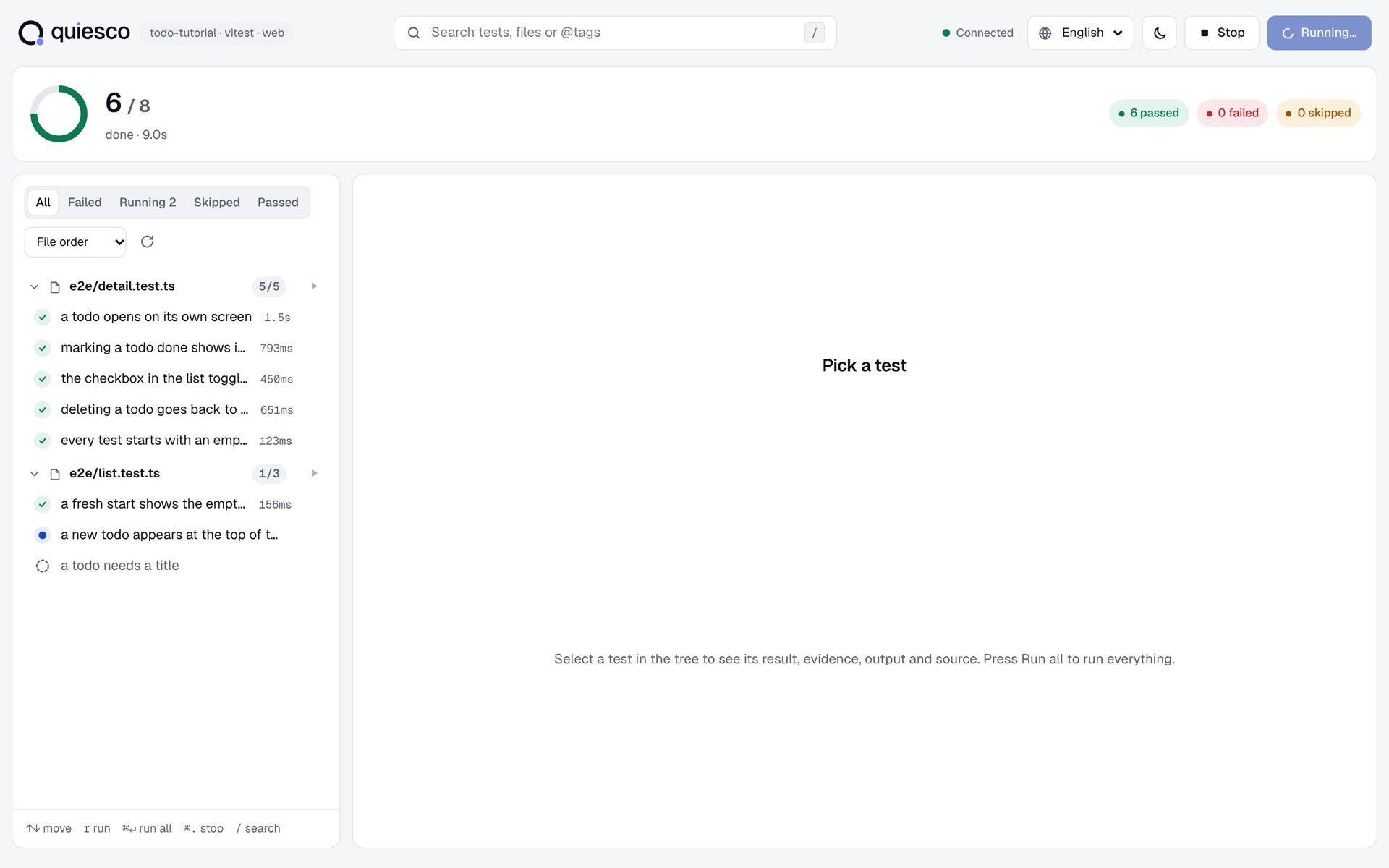
A run in progress: 6 of 8 tests done, two running
- Header: the project, the runner and the platform (
todo-tutorial · vitest · web); the search box; whether the page is connected toquiesco ui; the language and the theme; Stop and Run all. While a run is going, Run all turns into Running…. - Progress: done / total with a ring, the run’s state and the time so far, and how many tests passed, failed and were skipped. With several workers there is one lane per device, with the test it is running.
Test list
The left column lists the test files and their tests as the runner reports them without running them (the same list asquiesco list). Each test shows its last result and duration; each file
how many of its tests have run, in red once one of them failed. The list follows changes to the test files;
the ↻ button lists them again.
- Filters: All, Failed, Running, Skipped, Passed, each with its count.
- Order: file order, failed first, or slowest first.
- Search (in the header): by test name, file or
@tag. - Run: the ▶ next to a file or a test runs just that.
Report
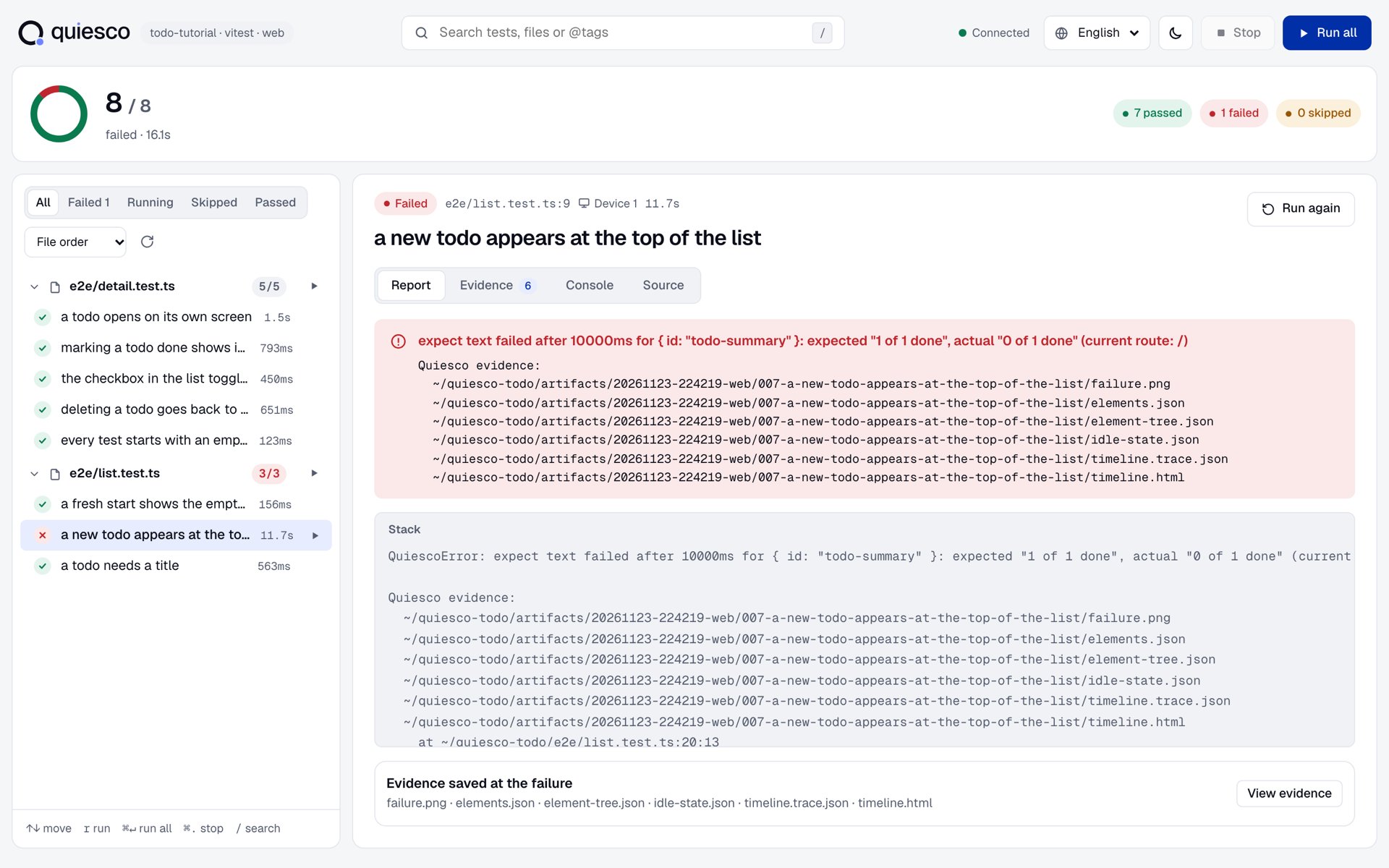
Report: the error, the stack and the evidence saved at the failure
expectText
expected, what it found and the current route — the paths of the evidence files, and the stack. View
evidence opens the next tab.
Evidence
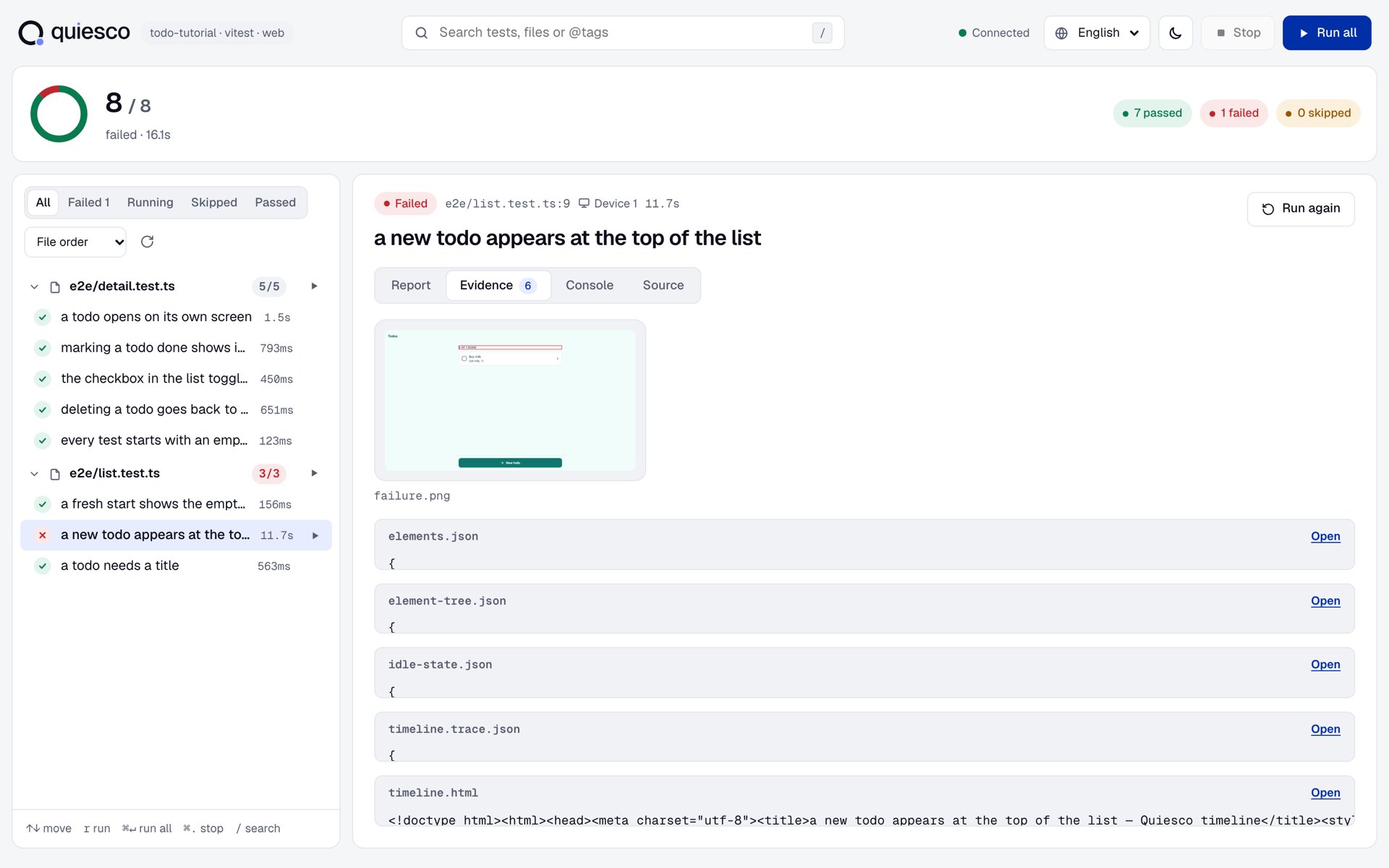
Evidence: the failure screenshot and the files Quiesco saved
failure.png with the elements of
the failed call framed in red, then elements.json, element-tree.json, idle-state.json and the
timeline, each with the beginning of its content and an Open link. The device log is listed here too
when the artifacts policy keeps it.
Console
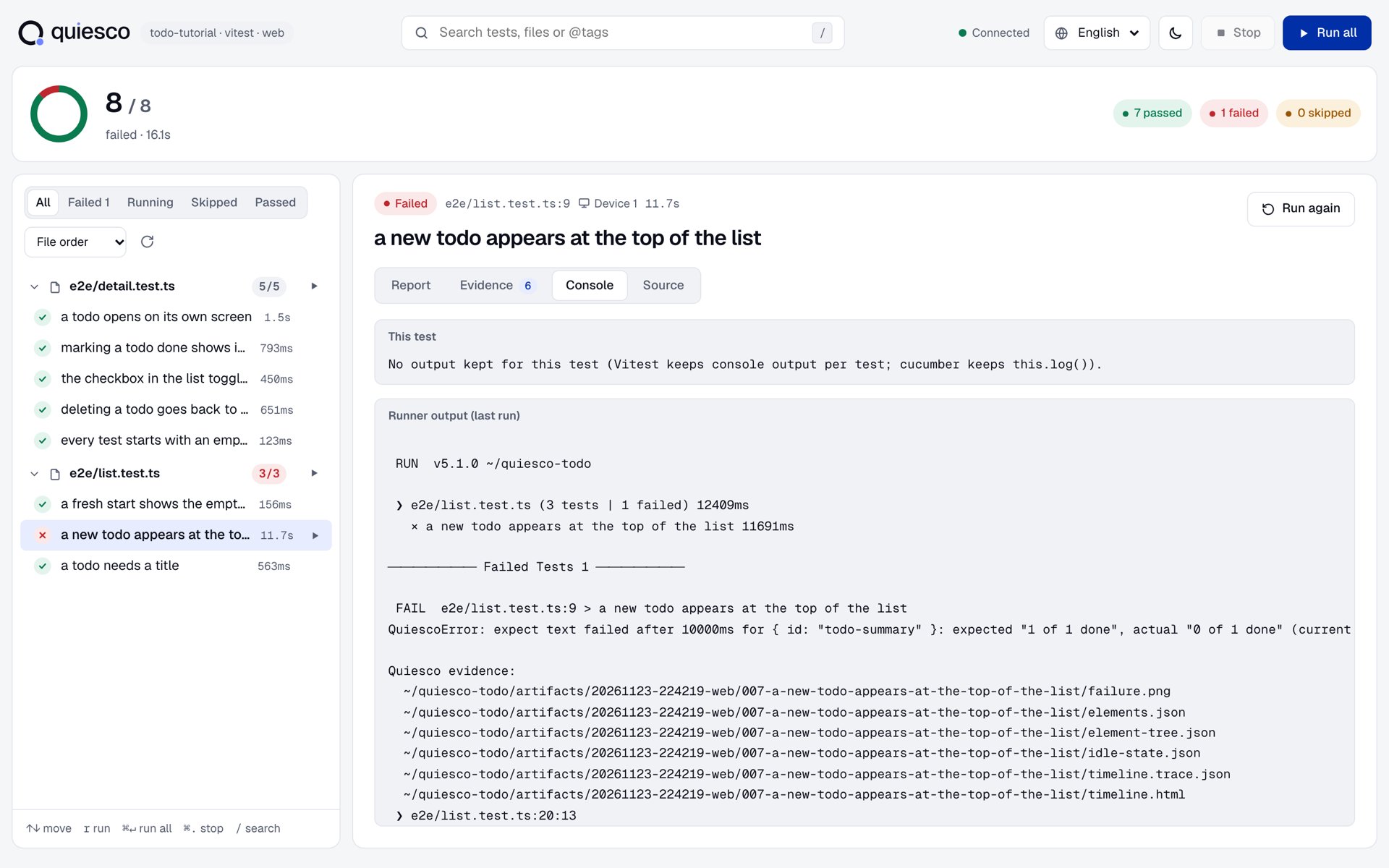
Console: the test's own output and the runner's
this.log(). Runner output is everything the runner printed in the last run, with its summary.
Source
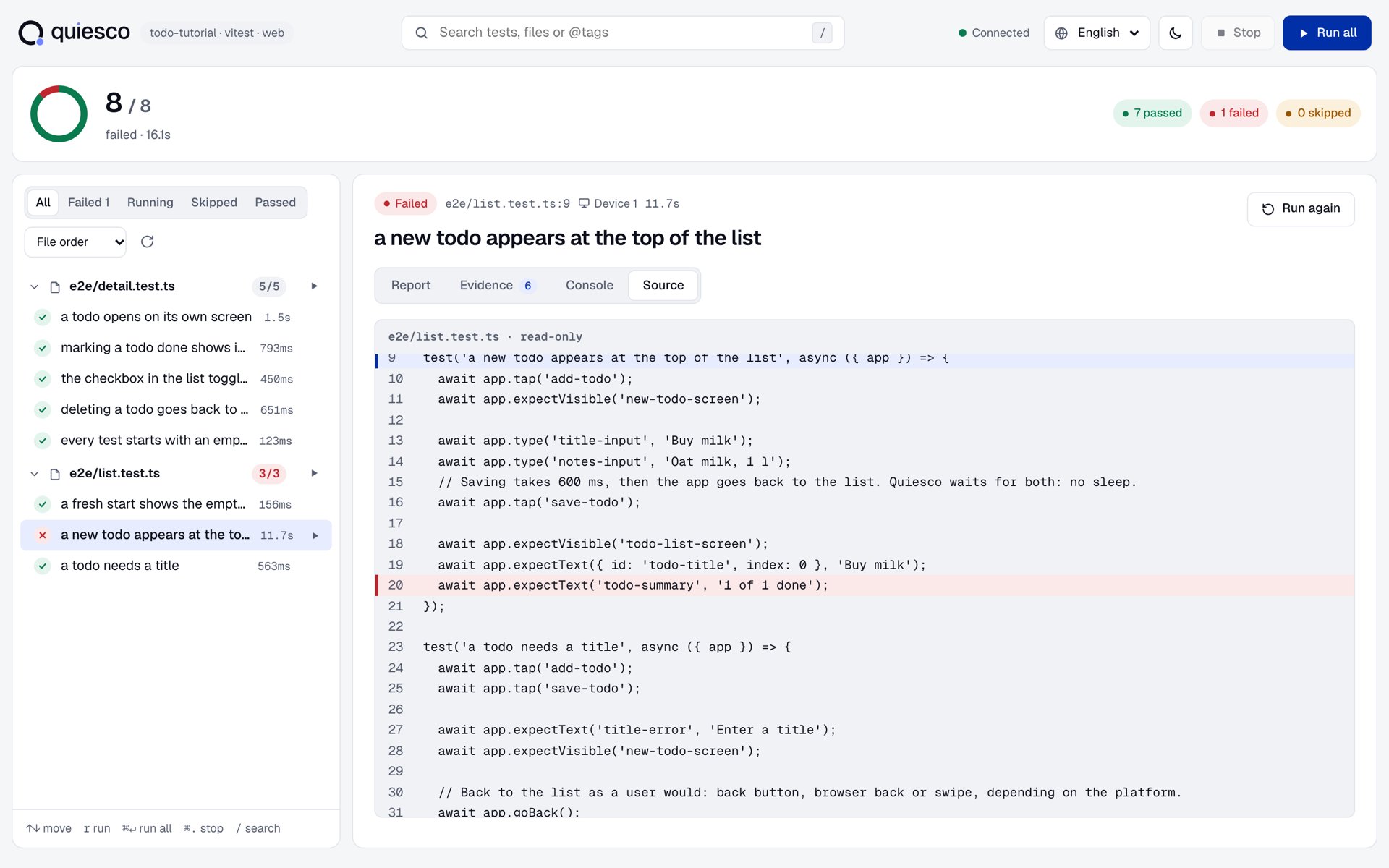
Source: the test, with its first line and the failing line marked
Keyboard, language and theme
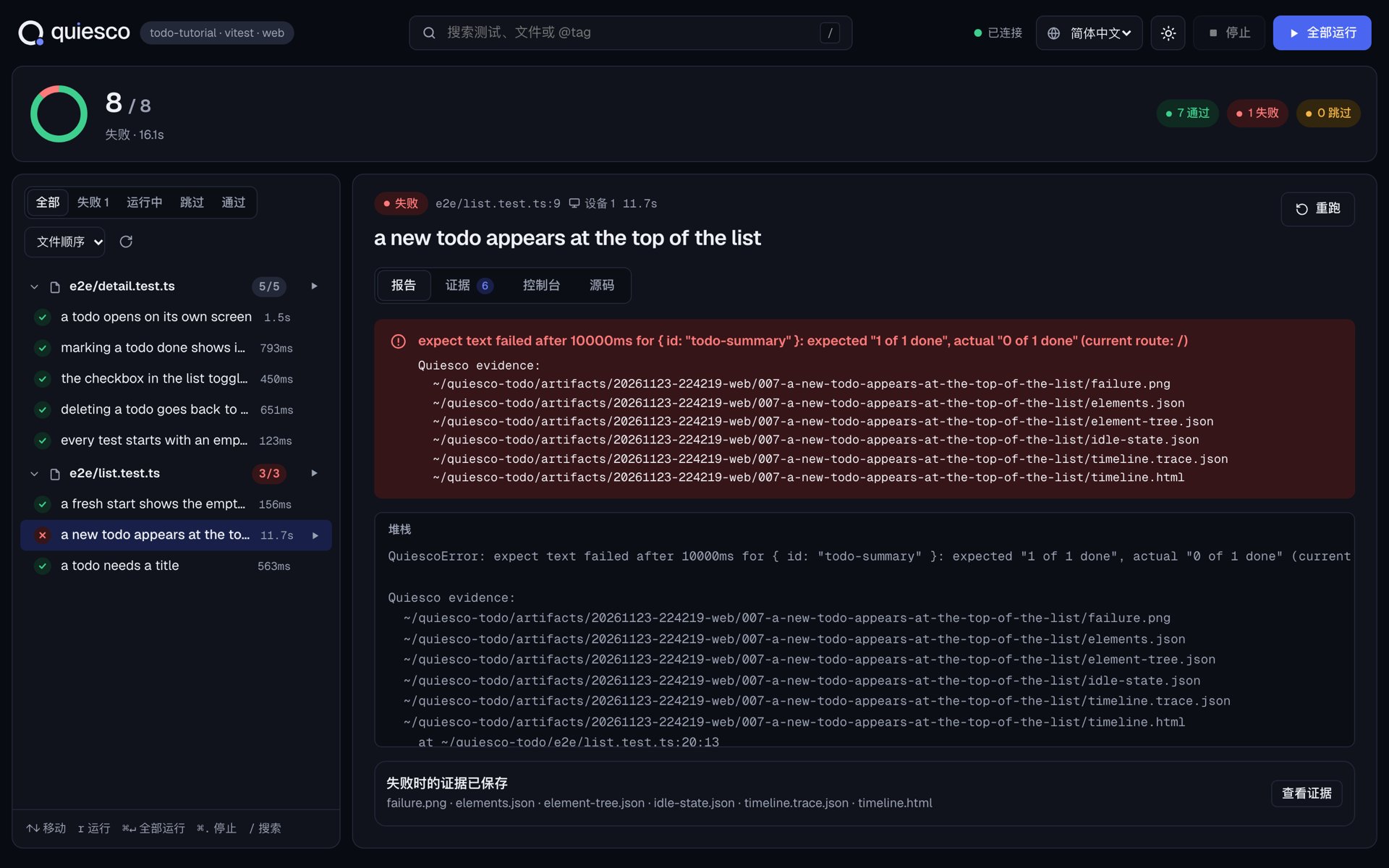
The same page in Chinese, with the dark theme
/ search, ↑ ↓ ← → in the tree, r runs the focused file or test, Ctrl/⌘ + Enter runs all,
Ctrl/⌘ + . stops (the shortcuts are listed under the tree). The page is in English, 简体中文 or 日本語 (the
browser’s language, or the one chosen in the header), in a light or a dark theme (the button next to the
language).
Running tests
One run at a time: there is one device (or one per worker), so the run buttons wait until the current run ends. A run starts the runner the wayquiesco test does, with the chosen tests added:
Stop ends the runner and its workers. Tests outside the chosen ones keep their last result (Vitest and Jest
report them as skipped; the page ignores that).
cucumber-js adds paths given on the command line to the
paths of its config instead of replacing them, so
with paths in cucumber.mjs a run of one test runs those paths too. Leave paths out of the config (as
quiesco init does) and pass paths on the command line.Security
The page is served on127.0.0.1 only. Its address carries a random token (kept in a cookie after the first
visit); requests with another host or origin are refused. It serves files only from the artifacts directory
(evidence) and the listed test files (source), never other files of the project.